Canvas & states
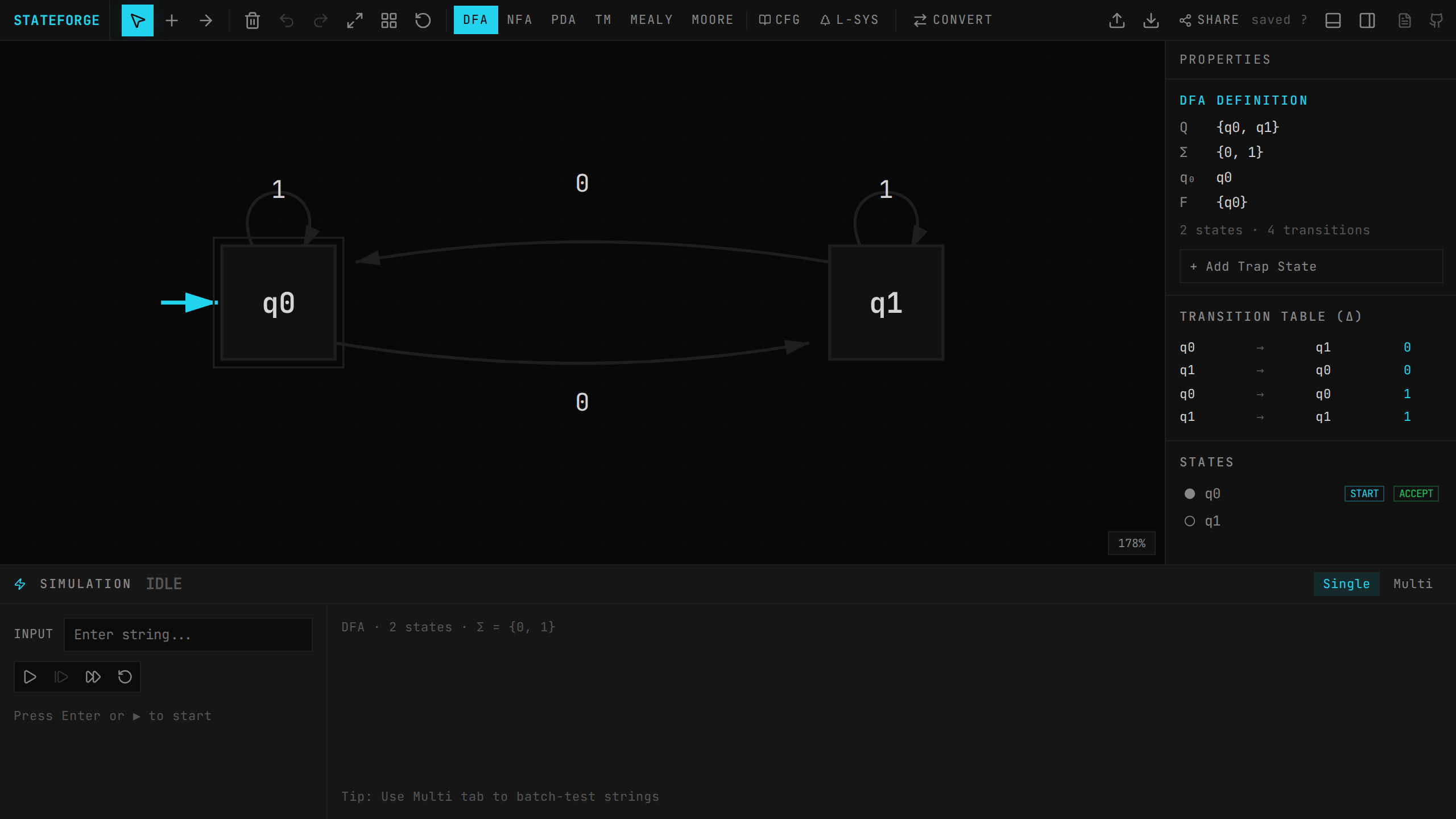
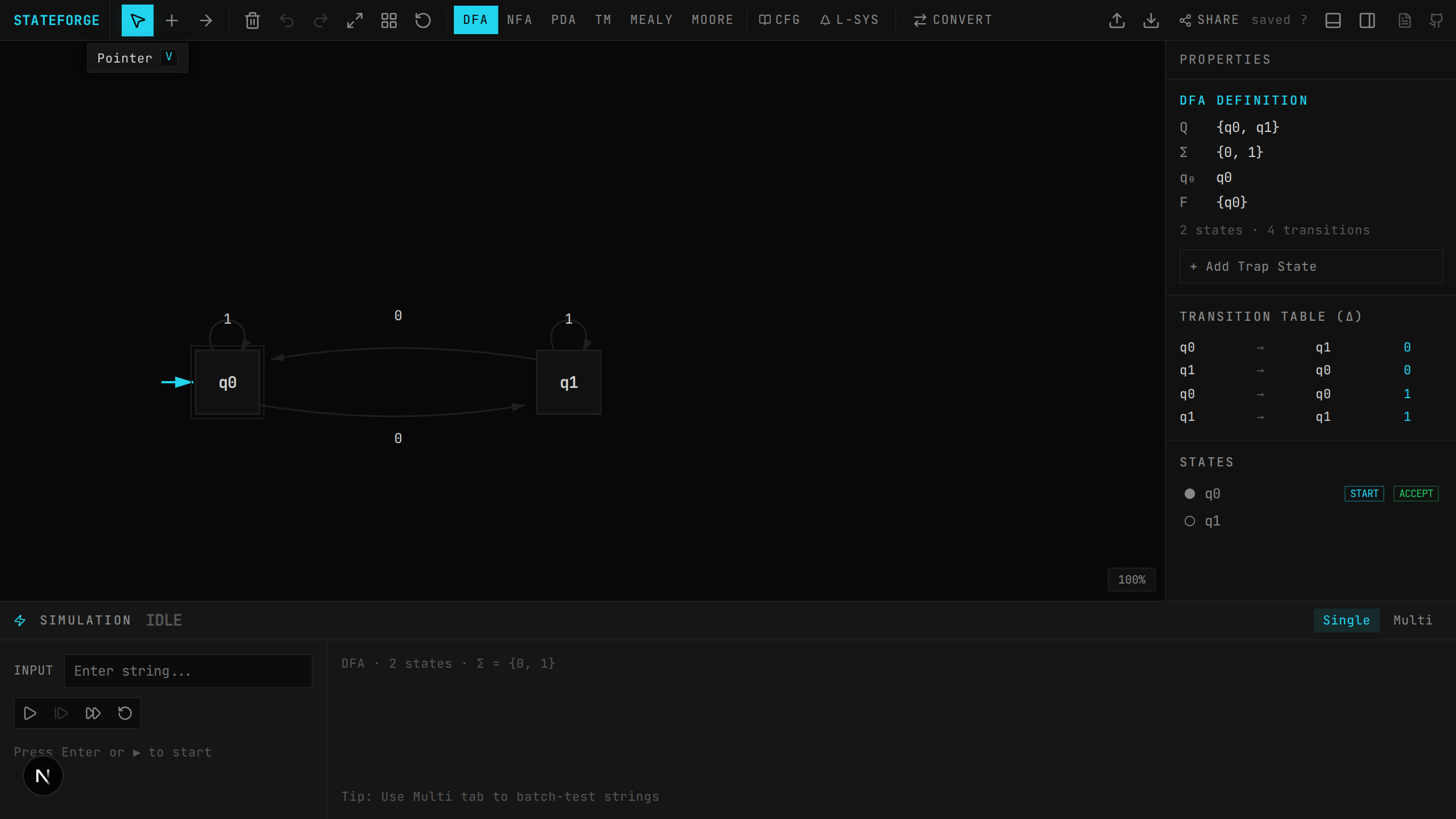
The canvas is an infinite SVG workspace rendered on a 20px dot grid. It uses a transform-based coordinate system where all state positions are stored in "world" coordinates, and the viewport is controlled by pan (translation) and zoom (scale) values.
Viewport controls
→ Pan: Hold Space + drag, or use middle mouse button. On mobile, drag on empty canvas area with one finger
→ Zoom: Scroll wheel (zooms toward cursor position). On mobile, pinch with two fingers. Zoom range: 25% to 300%
→ Zoom to Fit: Press ⌘1 to frame all states with 80px padding, clamped between 50%–250% zoom
→ The current zoom percentage is shown in the bottom-right corner of the canvas
→ Two-finger gestures on mobile support simultaneous pan and zoom
Adding states
→ Double-click empty canvas in pointer mode to add a state at that world coordinate
→ Press S for Add State tool, then click anywhere to place (cursor changes to crosshair)
→ Right-click empty canvas → "Add State Here" from context menu
→ The first state added is automatically set as initial (shown with an incoming arrow)
→ States are labeled q0, q1, q2… automatically with an incrementing counter
→ States are rendered as 28px-radius squares (not circles) with a 1.5px border
→ When only one state exists, the canvas auto-centers on it
Editing states
→ Double-click a state to rename it (an inline text input appears centered on the state)
→ Right-click a state for context menu: Set Initial, Set Accepting, Rename, Delete
→ On mobile, long-press (500ms) opens a bottom sheet context menu with the same options
→ Initial states show an incoming arrow (30px long) from the left; accepting states show an outer square border (4px larger than the state)
→ State labels longer than 10 characters are truncated with an ellipsis; font size scales down for labels longer than 6 characters (minimum 9px)
→ Setting a state as initial automatically unsets any other initial state (only one allowed)
Selection
→ Click a state to select it (shown with accent color border and glow filter)
→ Shift+Click to add to / toggle selection (multi-select)
→ Click+Drag on empty space for box select (a dashed rectangle appears and selects all states within)
→ ⌘A to select all states
→ Esc to deselect everything and close editors
→ Del or Backspace to delete all selected states and their connected transitions
→ Clicking a transition edge or label also selects it (shown in accent color); clicking empty space deselects
Dragging & layout
→ Drag states to reposition them; multi-select drag moves all selected states together
→ Dragging pushes an undo snapshot on first pixel moved (not on every frame), so undo restores original positions
→ ⇧⌘L — Auto Layout: uses a force-directed algorithm to arrange states. Repulsion forces push states apart, spring forces pull connected states together, and a centering force keeps everything anchored around (400, 300). The layout runs for 200 iterations and then calls Zoom to Fit. For a single state, it centers at (400, 300).
→ ⌘1 — Zoom to Fit: calculates bounding box of all states, adds 80px padding, and sets zoom/pan to frame everything
Undo / redo
→ ⌘Z — Undo (up to 50 snapshots in the undo stack)
→ ⌘⇧Z — Redo
→ Snapshots capture states, transitions, and mode. Any mutating action (add state, delete, rename, toggle initial/accepting, change mode, etc.) pushes an undo snapshot and clears the redo stack
→ Moving states only pushes a snapshot once per drag operation (not every frame)
Minimap
A minimap appears in the bottom-left corner of the canvas when there are 2 or more states.
→ Overview: Shows all states and transitions in a 160×100px bird's-eye view, with a rectangle indicating the current viewport
→ Click to navigate: Click anywhere on the minimap to center the viewport on that world position
→ Drag viewport: Drag the viewport rectangle within the minimap to pan the canvas
→ Auto-hide: The minimap is hidden when there are fewer than 2 states